Helloworld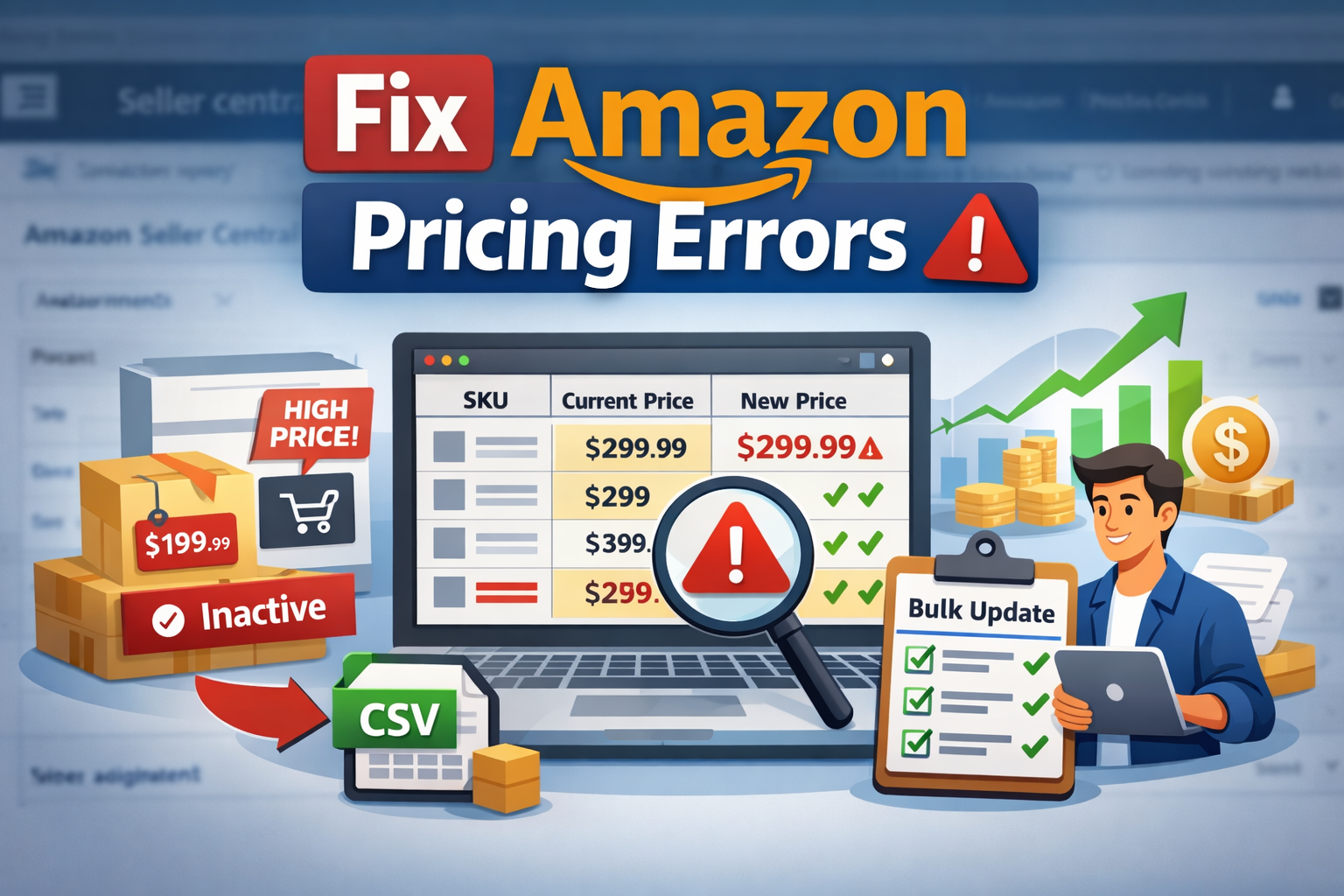
Amazon sellers frequently encounter the Potential High Pricing Error, an automated safety mechanism that temporarily deactivates listings or removes the Buy Box. If you manage a large catalogue, fixing these errors one-by-one can be painfully slow. This guide shows you exactly how to resolve these alerts in bulk, using Amazon Seller Central and the Amazon Inactive Listings Exporter Chrome extension.

⚠️ What Is a Potential High Pricing Error?
A Potential High Pricing Error occurs when Amazon’s pricing algorithm detects that your offer price is significantly higher than what it considers reasonable. When triggered, Amazon may:
- Deactivate your listing
- Remove your Buy Box
- Hide your offer from search results
Amazon compares your price against:
- Recent sales history
- Buy Box averages
- Competing offers
- External retail websites
This system exists to protect customers from perceived price gouging and maintain marketplace trust.
If you want to dive deeper into how Amazon evaluates pricing, explore Amazon pricing rules.
🚀 How the Amazon Inactive Listings Exporter Chrome Extension Helps
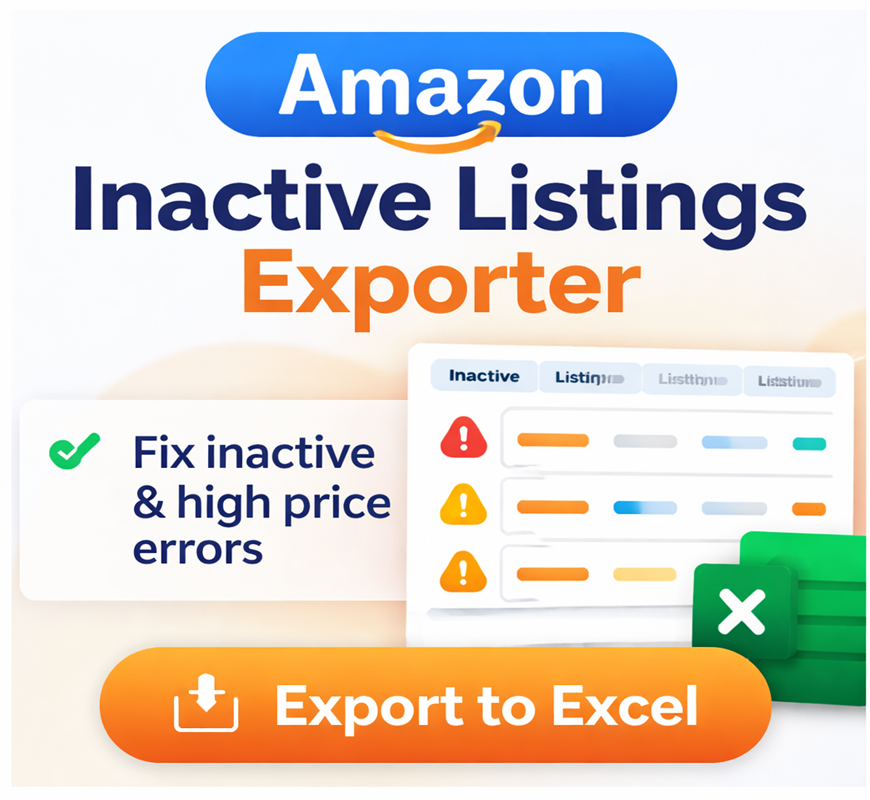
Managing inactive or blocked listings manually is slow and frustrating. The Amazon Inactive Listings Exporter extension automates the process by extracting all problematic listings into a clean spreadsheet.
Key Benefits
- Instant Data Extraction — Pull ASINs, titles, prices, inventory, and status into CSV/Excel instantly.
- Bulk Issue Identification — Quickly isolate listings with pricing errors, blocked status, or missing offers.
- Faster Troubleshooting — Fix hundreds of listings at once using Amazon’s bulk upload tools.
If you want to understand how the extension works behind the scenes, check out Chrome extension scraping basics.
✅ Step 1 — Install the Amazon Inactive Listings Exporter
You can install the extension directly from the Google Chrome Web Store.
Follow the full installation walkthrough here: How to Install Amazon Inactive Listings Exporter
Once installed, the extension will appear in your Chrome side panel whenever you open Amazon Seller Central.
✅ Step 2 — Export “Potential High Pricing Error” Listings
- Open Inventory in Amazon Seller Central.
- Launch the Amazon Inactive Listings Exporter from the side panel.
- Choose the status filter:
- Pricing Issue (for this task)
- Click Start Scan & Export.
- When the scan finishes, save the CSV file.
This gives you a complete list of all SKUs affected by pricing errors.
If you want to explore other listing statuses, try Amazon listing status types.
✅ Step 3 — Review & Prepare Your Pricing
Open the exported CSV file and review:
- Current price
- SKU
- ASIN
- Inventory
- Listing status
Then prepare:
- Your new selling price
- Your minimum allowed price
- Your maximum allowed price
If you need help calculating price floors/ceilings, explore Amazon min/max pricing strategy.
Once ready, move to the bulk update template.
✅ Step 4 — Bulk Update Prices in Amazon Seller Central
Download the Price & Quantity Template
- Go to Catalog > Add Products via Upload.
- Click Download blank template.
- Select Price & Quantity Template.
- Choose your language and download.
Fill Out the Template
Open the spreadsheet and complete the required fields:
- sku — Exact merchant SKU
- your-price — New selling price
- quantity — Current stock
- handling-time — Fulfillment processing time
- minimum-seller-allowed-price — Your price floor
- maximum-seller-allowed-price — Your price ceiling
Expand hidden columns using the + toggle to reveal min/max price fields.
If using an older template, set update-delete = PartialUpdate to avoid overwriting other listing data.
For more help, see Amazon bulk upload troubleshooting.
Save & Upload
- Save the file as Tab-delimited Text (.txt).
- Return to Add Products via Upload.
- Upload your .txt file under Upload your Inventory File.
Verify Your Changes
- Check the Processing Status tab.
- Download the Processing Summary Report for any errors.